Choose the content
Allow a whole channel, a playlist or selected videos. Keep the choices together in a whitelist.
MORE INTENTION. MORE DISCOVERY.
Make room for the videos you want your family to watch. Choose channels, playlists and individual videos, then bring those choices to a dedicated Windows player.
Illustrative client layout. Your lists and content will vary.
A FEW THOUGHTFUL BOUNDARIES
Start with what belongs in your family’s video space. Adjust the details as routines and interests change.
Allow a whole channel, a playlist or selected videos. Keep the choices together in a whitelist.
Bind multiple Windows clients to one whitelist. Each client keeps its own viewing-time allowance.
Set weekday and weekend viewing hours and daily limits using each client’s local time.
Set a playlist sequence, shuffle each round or switch looping off when the round is finished.
Review requests for videos, channels and playlists in the dashboard before adding them.
Use Watch Only for automatic viewing without manual video changes inside the app.
THE BIG PICTURE, AT A GLANCE
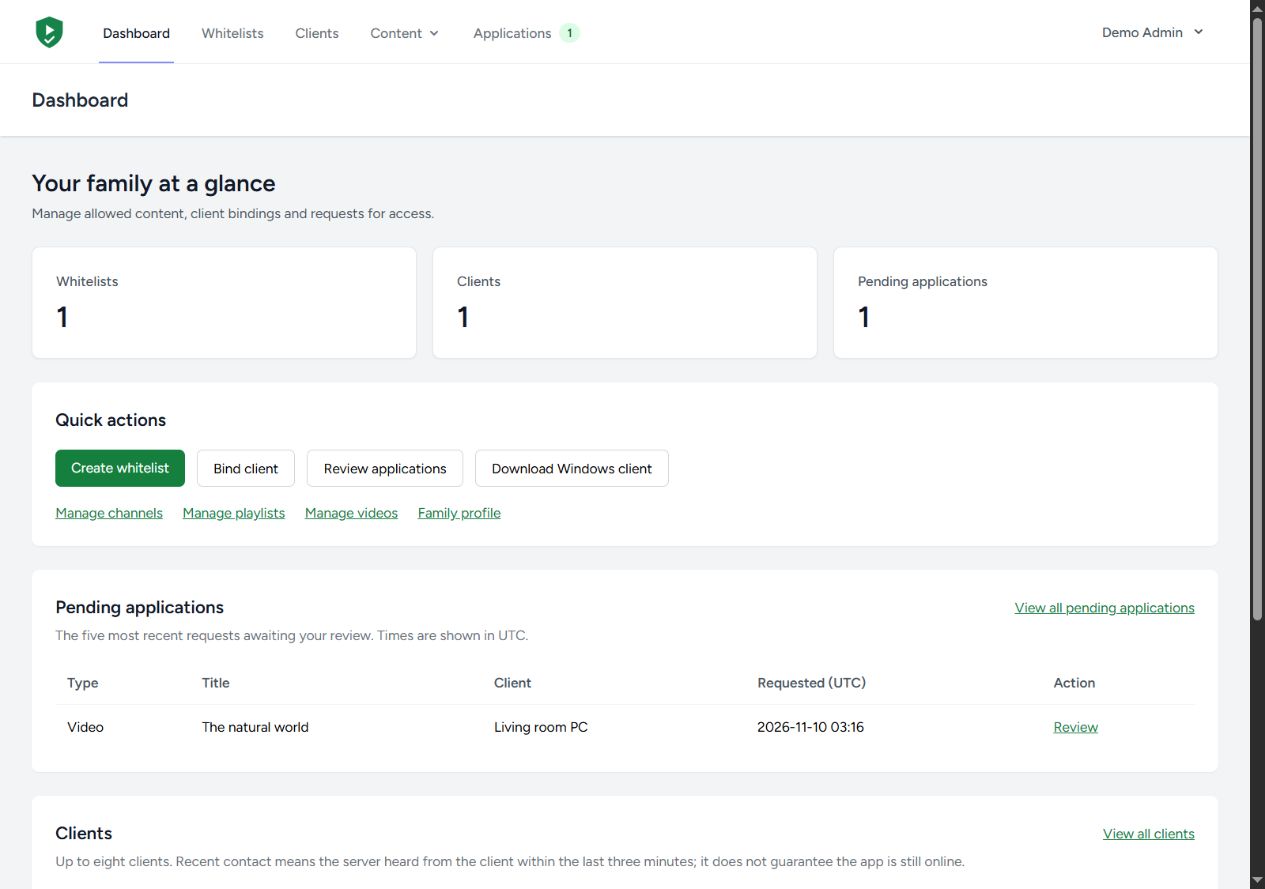
Manage whitelists, client bindings and content requests from your browser. The dashboard works on your phone, too.
FROM SETUP TO PLAYTIME
Download the current x64 installer and open TubeWhitelist on the client computer.
Create your family account, choose allowed content and set playback preferences.
Open Settings in the app. Scan or upload its QR code in the dashboard and select a whitelist.
READY WHEN YOU ARE
Try the current Windows alpha and build a whitelist around your family’s interests.
TubeWhitelist applies your content and playback choices. It does not certify the suitability of YouTube videos, remove YouTube advertising or replace supervision. Channel uploads, playlist contents and video availability can change. Learn about the limits.